




TripMemo Product Team
Product & releases
17 min read•Published •Updated
Summary
Choose TripMemo for travel photos organised into a shared digital TripBook, Google Photos for a searchable photo library, or Apple Photos for albums on your iPhone. Polarsteps suits route-led journals, Journi Print suits printed books, Utiful suits separate folders, Tripcast suits group updates, and Keep Travel focuses on offline sorting.
You can keep your existing photo library and make a TripBook from one trip's highlights. You do not need to move every photo to get started.
The best apps for organising travel photos depend on what you want to open when you're done. Choose TripMemo for a shared digital trip book, Google Photos for a searchable library across devices, or Apple Photos for albums inside the iPhone library you already use. If your goal is a printed keepsake, look at Journi Print; if it's a GPS route with photos along the way, look at Polarsteps.
The difficulty usually starts after taking the photos. Yours are on one phone, your partner's are on another, and the name of that tiny restaurant is in neither. A useful app needs to bring some order to that without giving you a second job.
This comparison covers eight options for holiday photos, from straightforward folders to books you can revisit together.
We're the team behind TripMemo, which is included below. We checked official product pages and help documentation on 5 September 2026. These are recommendations by use case, not the results of a hands-on test of every app. Each option has a reason to choose it and a trade-off to consider.
The best travel photo organisation apps at a glance
| App | Best fit for your travel photos |
|---|---|
| TripMemo | A shared digital TripBook with days, notes and map context |
| Google Photos | A searchable library and albums across devices |
| Apple Photos | Albums and folders in your existing iPhone library |
| Polarsteps | Photos and stories along a tracked travel route |
| Journi Print | Chronological layouts for a printed holiday book |
| Utiful | Moving photos out of the camera roll into separate folders |
| Tripcast | Collecting a group's photos, updates and map locations |
| Keep Travel | Exploring automatic offline sorting on iPhone |
Decide this first: do you want to find a particular photo, clear a cluttered camera roll, or open a complete trip? Those are different jobs. You may already have the right app for the first and want something else for the third.
Collecting holiday photos from several phones
For iPhone friends who want a shared trip story, consider TripMemo. For a group mixing iPhone and Android, start with Google Photos. Apple Shared Albums suit people already using iCloud, while Tripcast is worth a small trial if you want a group album with a trip map.
Before choosing, ask who will add photos and who only needs to view them. A browser viewing link does not necessarily let someone contribute. These four options from the comparison above address group collection directly:
Swipe across the table to compare contribution, viewing and downloads.
| Option | Contributor effort and devices | How others view | Download behaviour | Context alongside the photos |
|---|---|---|---|---|
| TripMemo | Each contributor uses the iPhone app and joins the shared TripBook. Each person selects and adds their photos. | Shared TripBook viewing links open in a browser. | TripMemo's shared-journal page describes downloading the group's collection. We have not independently checked the current iPhone download flow or exported file quality for this comparison. | Day pages, notes and places keep both people's memories in the same trip. |
| Google Photos shared album | Contributors sign in to Google Photos and add selected photos with collaboration enabled. Supports iPhone, Android and web. | People can open a shared link without installing the app. Anyone with that link can view it. | Saving shared photos adds copies to your Google Photos library; downloading to a device is a separate action. | Album text, locations and maps can supply context; comments support conversation. |
| Apple iCloud Shared Albums | Invite participants using iCloud and enable contributions. Best suited to a group already using Apple devices. | Subscribers view in Photos. Optional Public Website access lets others view in a browser. | Participants can save shared items to their library. Shared copies may have reduced resolution and may not retain the original information. | Comments accompany the shared collection; this is an album rather than a day-by-day journal. |
| Tripcast | Travellers join one album and contribute. Its site lists iPhone, Android and browser access; check access on everyone's current device first. | Invited people follow the album through the service's apps or browser. | The vendor advertises downloading all collected photos. Try a small collection before relying on its export. | Comments and a trip map add conversation and location context. |
Sharing documentation reviewed on 11 September 2026: Google Photos sharing, device downloads, Apple Shared Albums, Tripcast and TripMemo's shared travel journal. This is a documentation comparison, not a hands-on group test. Notes and comments visible in an album should not be assumed to travel with downloaded image files.
Make the first request small: ask each friend for five favourite photos and a sentence about one of them. Agree on a single collection and a date to add the rest. That gives everyone a manageable starting point and helps you spot missing moments before memories fade.
If your main goal is keeping relatives at home updated, see how to share trip photos with family without social media for viewing links and other sharing methods.
1. TripMemo: best for turning travel photos into a shared TripBook
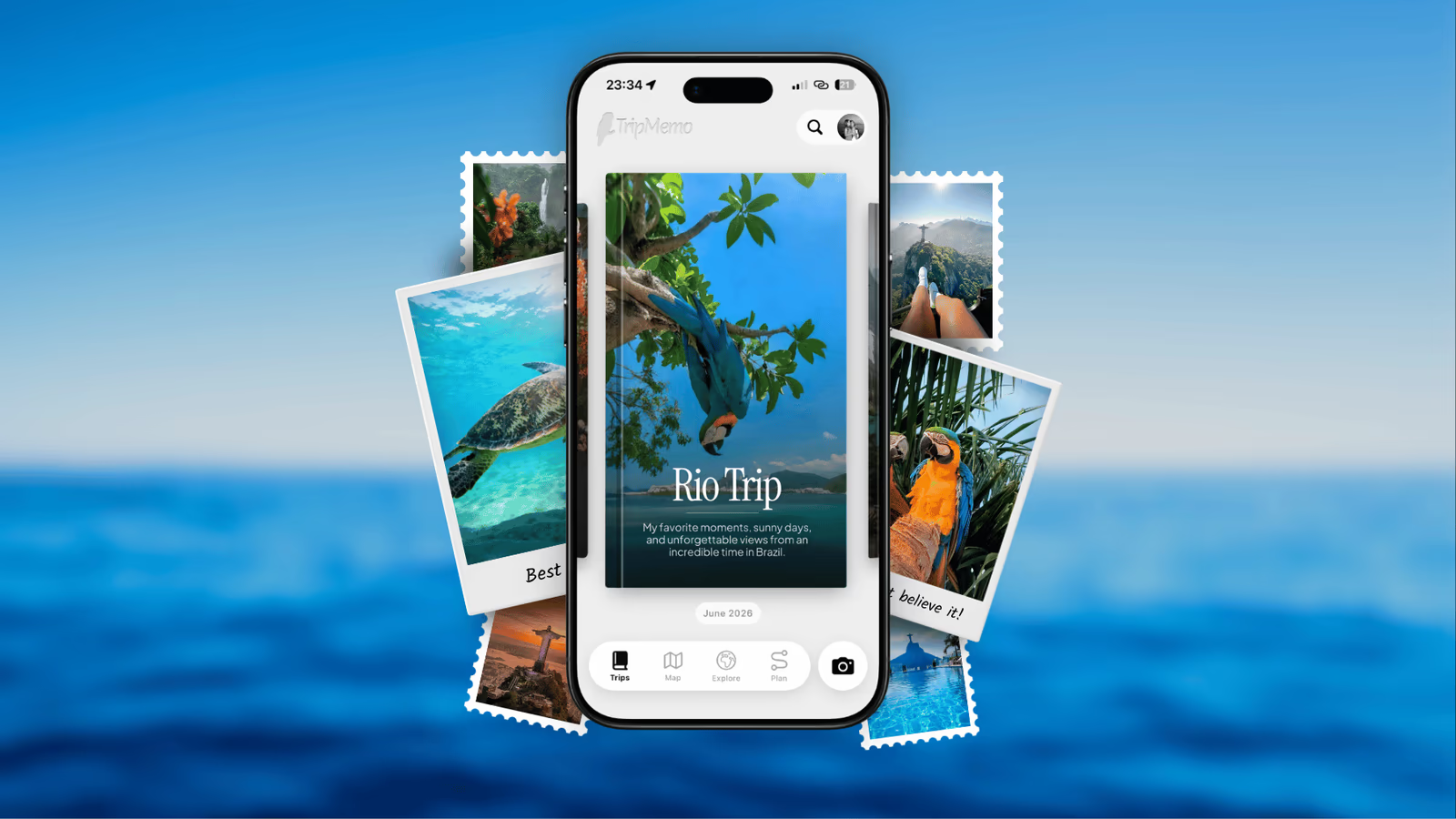
TripMemo is a good fit when you want to open “Japan” and see the journey in order: the places, the photos and the little details that explain them.
You can bulk upload photos from a past trip, and TripMemo arranges them into chronological days. Add short notes and location context, choose a cover, and the trip becomes a digital TripBook. You can reorder the photos and days when you want to tell part of the story differently.
The useful difference on a trip together is that both people can contribute. One person has the view from the boat; the other has the photo of everyone asleep on the way back. They belong in the same book. TripMemo supports shared editing, so collecting the trip does not have to become one person's project.
What that looks like with two camera rolls
Illustrative example, not a recorded two-account test: Maya and Alex each choose five photos from a day in Lisbon. Maya has the tram ride and street scenes; Alex has the lunch stop and a photograph of them together.
- Maya creates a Portugal TripBook and adds her five photos.
- Alex joins as a contributor using the iPhone app and adds his five to the same trip. The shared travel journal page explains TripMemo's contribution workflow.
- They review the day together. They check the order, choose between similar dinner pictures and add the restaurant's name.
- Each adds one detail the other missed. Maya's note: “We took the tram after walking up the wrong hill.” Alex's: “The lunch stop was the best part of the detour.”
- They send family a viewing link. Family can read in a browser; this is separate from the contributor invitation.
The result is one day with photos from both phones and two perspectives. Their original camera rolls stay where they are.
Check the collection download before adding the whole holiday
TripMemo's current product page describes downloading the shared photo collection. Before using that as your handoff, try it with a small book containing pictures from both contributors. Open the downloaded files in your phone's photo library and check that both people's pictures are present. If you need originals for printing or archiving, compare dimensions and date/location information with the source files too.
The current iPhone button sequence, file fidelity and whether journal notes accompany downloads have not been verified for this article. Keep the original files separately, and use the TripBook to revisit the captions and day context.
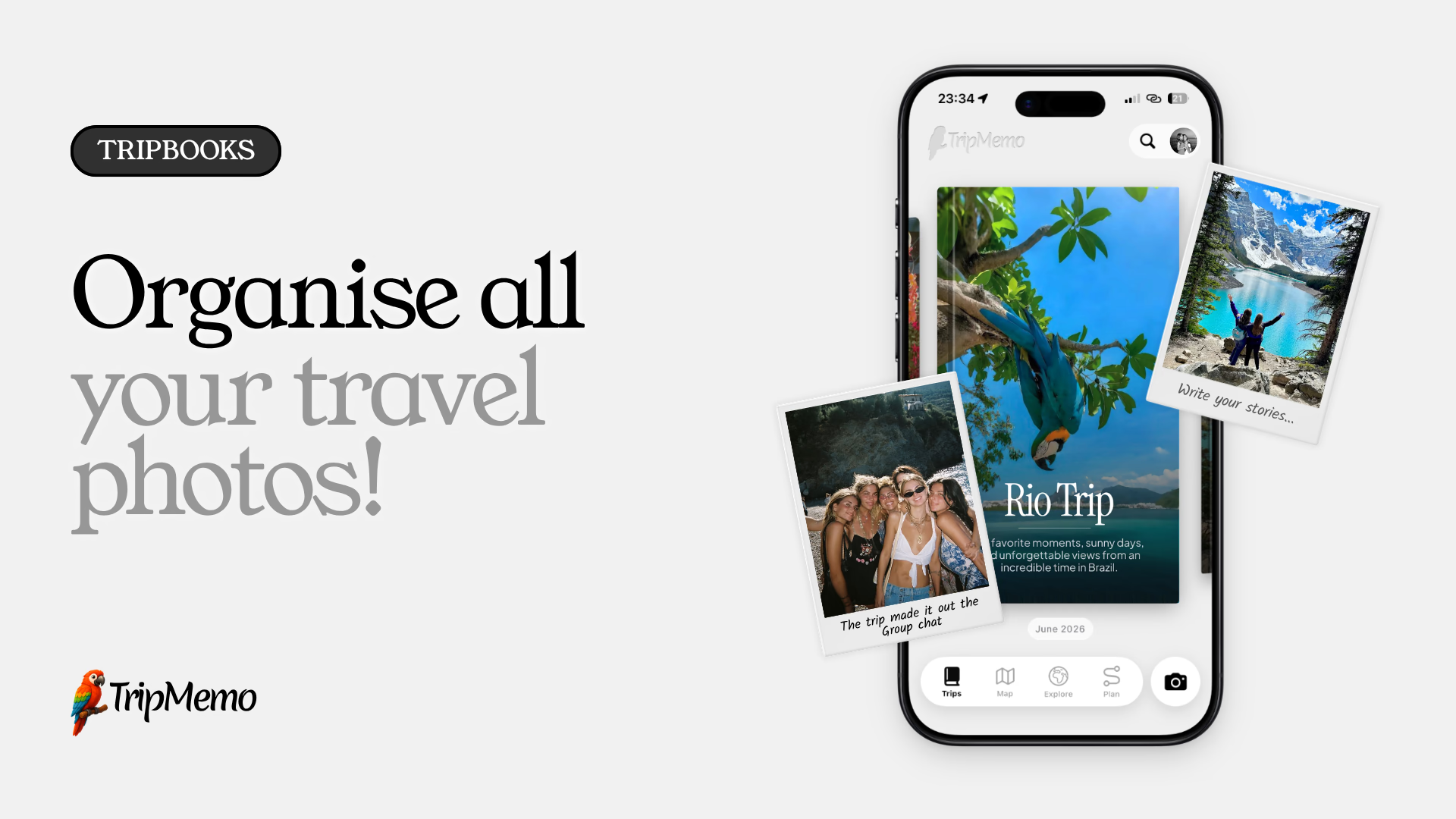
Choose TripMemo if: you want your travel photos to become a readable, collaborative photo journal, including trips you took before installing it.
Consider the trade-off: TripMemo's app is for iPhone. Browser viewing helps you share with people on other devices, but it is not an Android editing app. Keep a separate original-file archive if you need a complete photography backup.
Bring everyone's trip photos together.
Create one TripBook, invite your iPhone travel companions and start with five favourite photos each.
Download TripMemo for iPhone
Join the TripMemo
Newsletter
Unsubscribe anytime. Read our privacy policy.
2. Google Photos: best for a searchable travel photo library
Google Photos makes sense when your main question is “Where is that photo?” It supports searches for places, people and things, with availability depending on settings and region. You can build an album for a trip and use it across your phone and computer. Google's search guide explains the options.
It can do more than display a grid. Google Photos albums support text, locations and maps, which is useful for giving a holiday album some structure. If you're happy making albums yourself, you may already have enough. See Google's album documentation.
Choose Google Photos if: you want one searchable library for travel and everyday photos, especially across iPhone, Android and the web.
Consider the trade-off: check your backup settings. Original quality preserves the captured resolution and quality; Storage saver can compress images. Both use your Google Account storage allowance. Older articles promising unlimited Storage saver uploads are out of date. Google explains backup quality here.
If you're deciding whether to keep an album or build a journal alongside it, our Google Photos versus travel journal comparison goes into that choice.
3. Apple Photos: best for using what is already on your iPhone
Before adding another app, try giving one trip a proper album in Apple Photos. A clearly named album such as “Portugal, September 2026” may be all you need for finding and browsing those photos later.
Apple supports albums and folders, and its Photos app can identify duplicates on supported systems. Importantly, adding a photo to an album does not remove it from the main library. Deleting the album also leaves its pictures in the library. Apple's album guide and duplicate-detection guidance cover those behaviours.
Choose Apple Photos if: you want a simple organisation habit inside your existing Apple library.
Consider the trade-off: an ordinary album, an iCloud Shared Album and an iCloud Shared Photo Library are different features. Do not assume they have identical storage or sharing behaviour. Check Apple's Shared Albums guidance before choosing how to collect a family's photos.
4. Polarsteps: best for organising photos around a tracked route
Polarsteps is worth considering when the route is the story: a long train journey, an overland adventure or a walking trip with a new stop each day.
Its Travel Tracker records your journey, and you add photos and stories to steps along the way. Polarsteps also supports adding past trips, so you do not have to have used it while travelling. Its Travel Tracker page describes the route, sharing and contribution features.
Choose Polarsteps if: you want the places you travelled through to form the structure of your journal, especially with tracking during the trip.
Consider the trade-off: decide whether you want a record of your movements or an organised selection from your camera roll. Those needs overlap, but a route tracker will matter much more to some travellers than others. Compare that workflow with TripMemo's approach to travel memories before moving a large collection.
5. Journi Print: best for organising photos into a printed holiday book
Journi Print is a strong candidate when you already know the destination for your photos: a book on the coffee table.
Its help centre says photos are arranged chronologically using the timestamps in their metadata. This can take some of the work out of ordering a holiday's pictures. Journi also uses location information for map elements. See its documentation on photo arrangement and maps and missing location data.
Choose Journi Print if: your main goal is to design and order a physical travel photo book from an iPhone or Android phone.
Consider the trade-off: you are organising a print project. If you want an ongoing digital journal that people contribute to during the trip, compare that workflow separately. This recommendation concerns Journi Print, rather than treating every Journi product as the same app.

%20copy%202.avif&w=384&q=75&dpl=dpl_8rfq4W9dyXsDTL7JRYsC2GrNn4WF)
%20copy%203.avif&w=384&q=75&dpl=dpl_8rfq4W9dyXsDTL7JRYsC2GrNn4WF)

Your trips deservemore than a camera roll
.avif&w=96&q=75&dpl=dpl_8rfq4W9dyXsDTL7JRYsC2GrNn4WF)
6. Utiful: best for putting travel photos in separate folders
If your frustration is “I made an album, but all the pictures are still in my camera roll,” Utiful addresses that specific problem.
Utiful describes its system as moving photos out of the main camera roll into separate folders, rather than simply collecting references to them in an album. It is available for iPhone and Android.
Choose Utiful if: you want folders for trips, receipts, research screenshots or other categories, and you prefer deciding exactly where each file belongs.
Consider the trade-off: folder organisation is work you maintain. It may give you a tidier library, but you still supply the trip's structure and context. Before moving or removing originals, make sure you understand where the files will live and how they are backed up.
7. Tripcast: best for a group's shared travel updates
Tripcast brings together photos from multiple travellers in one trip album. It describes automatic placement on a trip map, browser access, comments and the ability to download the collected photos afterwards.
That makes it relevant when the organiser's biggest challenge is getting everyone else's pictures, particularly while friends and family follow along from home.
Choose Tripcast if: you want a shared album with location browsing and conversation around the updates.
Consider the trade-off: confirm that everyone can access the service on their current device before setting up the group. Its website lists mobile apps and browser access, but some device references on the page are old. Make a small trial album and check the upload and download workflow together.
For a fuller look at viewing links and family access, see how to share trip photos without social media.
8. Keep Travel: an option for offline photo sorting on iPhone
Keep Travel is a more specialised option. Its developer describes automatic grouping by time and location, handling of bursts and filtering of non-travel pictures, with an offline focus. Those claims come from its App Store listing, rather than our own performance testing.
Consider Keep Travel if: you want to explore local sorting of an existing collection on iPhone.
Check before committing: how well its grouping handles your own photos, especially scans, missing dates or pictures from more than one camera. Offline organisation and a recoverable backup are separate requirements.
How to choose using one real trip
You do not need to import ten years of photos to find out whether an app suits you. Use a small selection from one journey: a couple of different days, a few pictures from your travel partner, and one photo you know has no location attached.
Then ask:
- Can I find the trip again easily? Look for a clear trip title, useful dates and sensible ordering.
- What happens to missing or incorrect information? Check whether you can correct the day or place without rebuilding everything.
- Can the right people contribute or view? A viewing link is not the same as permission to add photos.
- What can I take out later? Check the download or export options and whether they meet your needs for original files.
- Would I actually reopen this? The best folder structure is only useful if you like using it.
For a complete sorting routine, use our step-by-step travel photo organisation guide. If you are deciding what to make, explore nine things to do with travel photos after a holiday.
Why photos sometimes end up on the wrong day or map
Automatic organisation depends on the information attached to the photo. A picture can carry a capture date and location, but a scan may have the date it was scanned, and a transferred file may arrive without its original location.
Check a few pictures before importing a large trip. Look at their dates and locations in your existing photo app. Correct known mistakes where possible, and expect to add some context yourself when that information is missing. An app cannot reliably reconstruct every stop from photos that never recorded it.
This matters with two cameras, too. If one camera's clock was wrong, chronological order can still put dinner before lunch. The useful feature is being able to correct the result.
Frequently asked questions
What is the best app for organising travel photos?
Choose by the result you want. TripMemo suits photos organised into a collaborative digital TripBook with days, places and notes. Google Photos suits a searchable library across devices. Apple Photos suits existing iPhone albums, and Journi Print suits a physical photo book.
Can an app organise travel photos automatically by date and location?
Yes, when the photos contain useful date and location information. TripMemo groups imported past-trip photos into chronological days; location information helps put memories on a map. Incorrect dates, scans and files with missing location data may need manual correction.
Which apps work for organising travel photos on Android?
Google Photos, Polarsteps, Journi Print and Utiful are options for Android users. TripMemo's app is for iPhone; sharing a TripBook for browser viewing is different from creating and editing one in the app.
Do I have to move my whole photo library into TripMemo?
No. Start with the photos from one trip and use them to create a TripBook. Keep your existing library and original-file backup separately. Your TripBook can hold the highlights, places and notes you want to revisit.
Does adding photos to an album free up phone storage?
Usually, no. An album organises photos without removing them from the library. Check that an independent copy of your originals is complete before deleting anything, and check how deletions sync across your devices.
How should I organise 30 years of digital travel photos?
Keep an original-file archive, sort it into years and trips, and work on one journey at a time. Correct dates on scanned or misdated images before relying on automatic ordering. Use a trip album or TripBook for a selected set rather than trying to caption the entire archive.
Give one trip a home
Think of a trip you would like to look through tonight. You probably do not want every burst, screenshot and almost-identical sunset. You want enough photographs to take you back, in an order that makes sense, with the details you would otherwise have to ask someone to remember.
Start there. Keep your photo library, choose that trip, and make the version you want to revisit.
Your photos. Everyone's memories. One TripBook.
Bring a past trip into TripMemo, add the missing moments together and keep its story close.
Make your first TripBookDownload TripMemo for iPhone.