
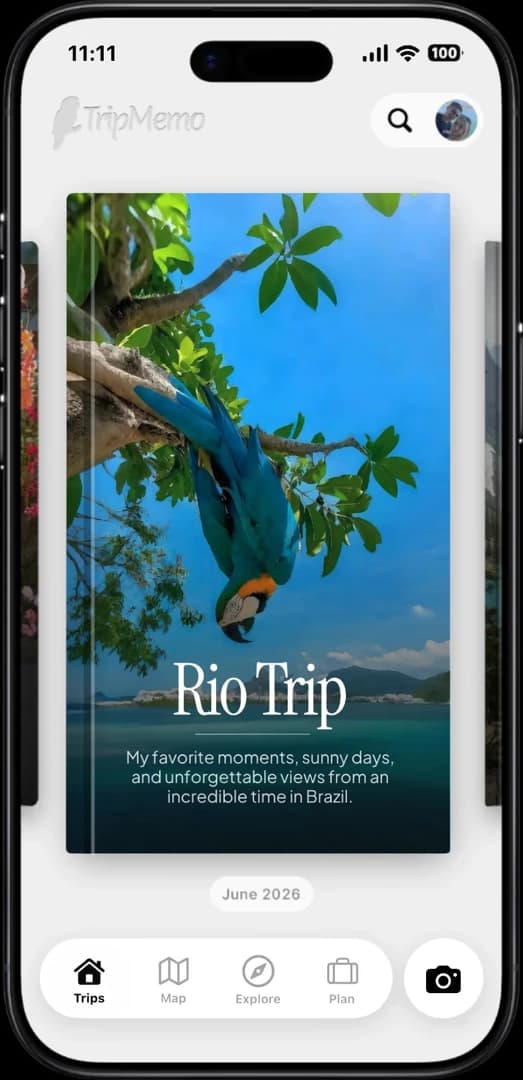
Back up everything
Google Photos is built to save, search and access a large photo and video library across signed-in devices.

Photo library and TripBook compared
Photo library and TripBook compared
Google Photos is excellent at protecting and finding a large photo library. A travel journal app solves a different problem: selecting the moments that matter and arranging them into a story you will understand years later.
Quick answer
Use Google Photos, Apple Photos or another reliable library to preserve and find the complete collection. Use a travel journal to curate the smaller set that tells the trip properly. Storage protects the files. Story structure protects their meaning.
Google Photos is built to save, search and access a large photo and video library across signed-in devices.
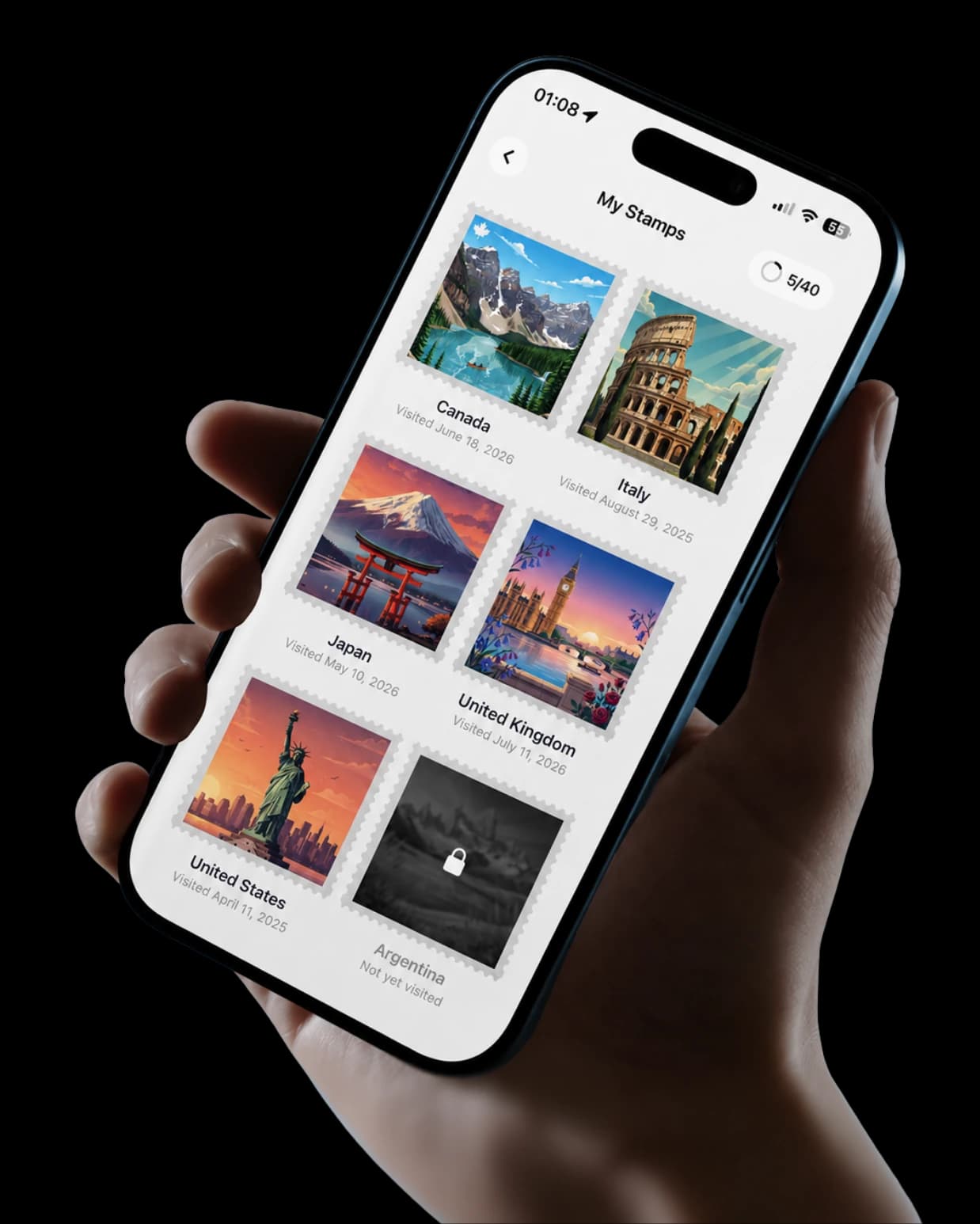
TripMemo turns a chosen set of travel photos into chronological pages with places, notes and captions.
Google partner sharing collects photographs. A shared TripBook adds both travellers' context to one trip story.
Keep the complete library safely backed up, then make a smaller TripBook that you will actually revisit.
Choose by need
Choose the library first, then decide whether the trips that matter deserve a more intentional layer on top.
Save the places, shape the days, then keep every part of the journey.
Travellers are using TripMemo to organise the camera roll, write down the details and give every journey a home they can return to.
The comparison becomes fair only when Google Photos is judged as a photo library and TripMemo is judged as a travel journal. Neither should be presented as a complete replacement for the other's core job.
Decision factor
Decision factor
Decision factor
Decision factor
Decision factor
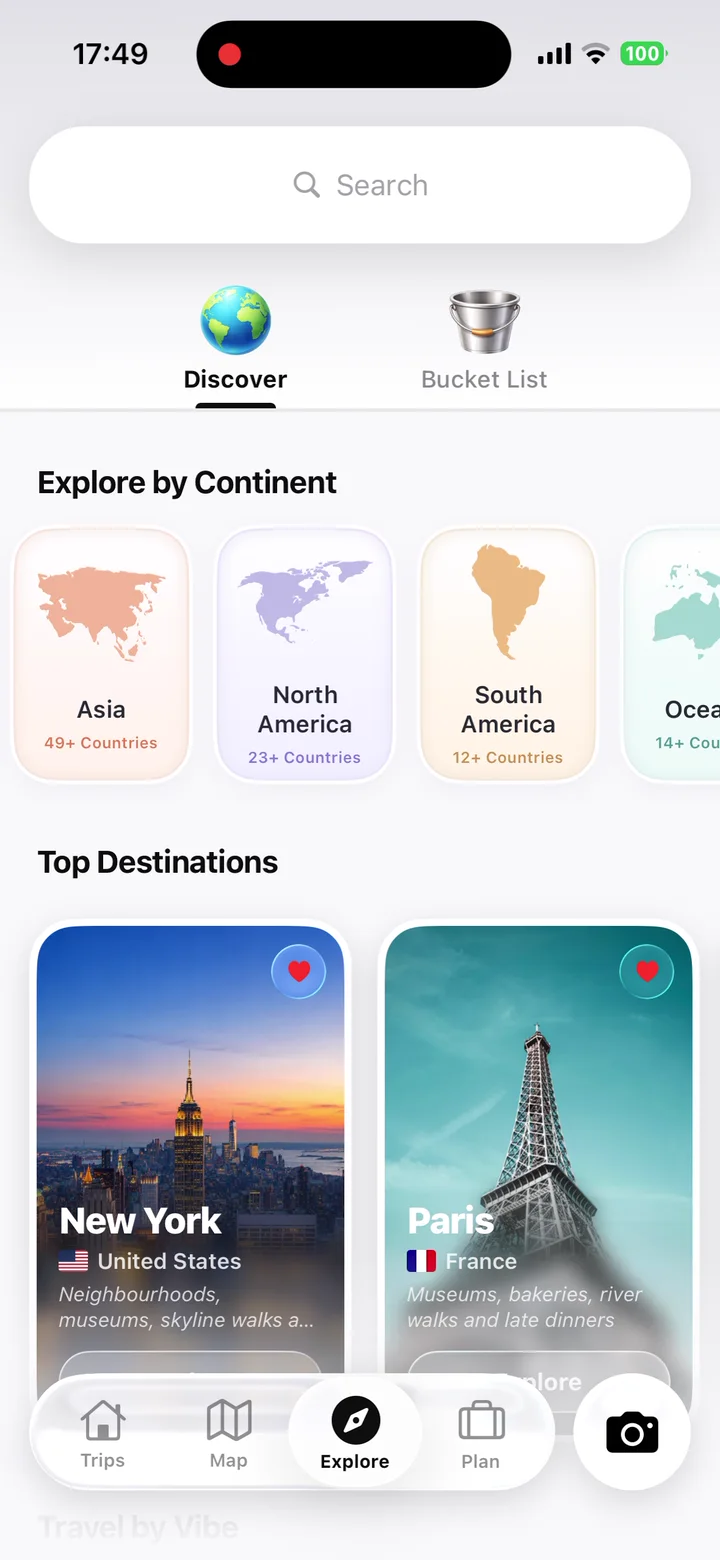
One app. Your entire trip.
Detailed assessment
The strongest setup often combines a dependable photo library with one intentional place for the finished travel story.
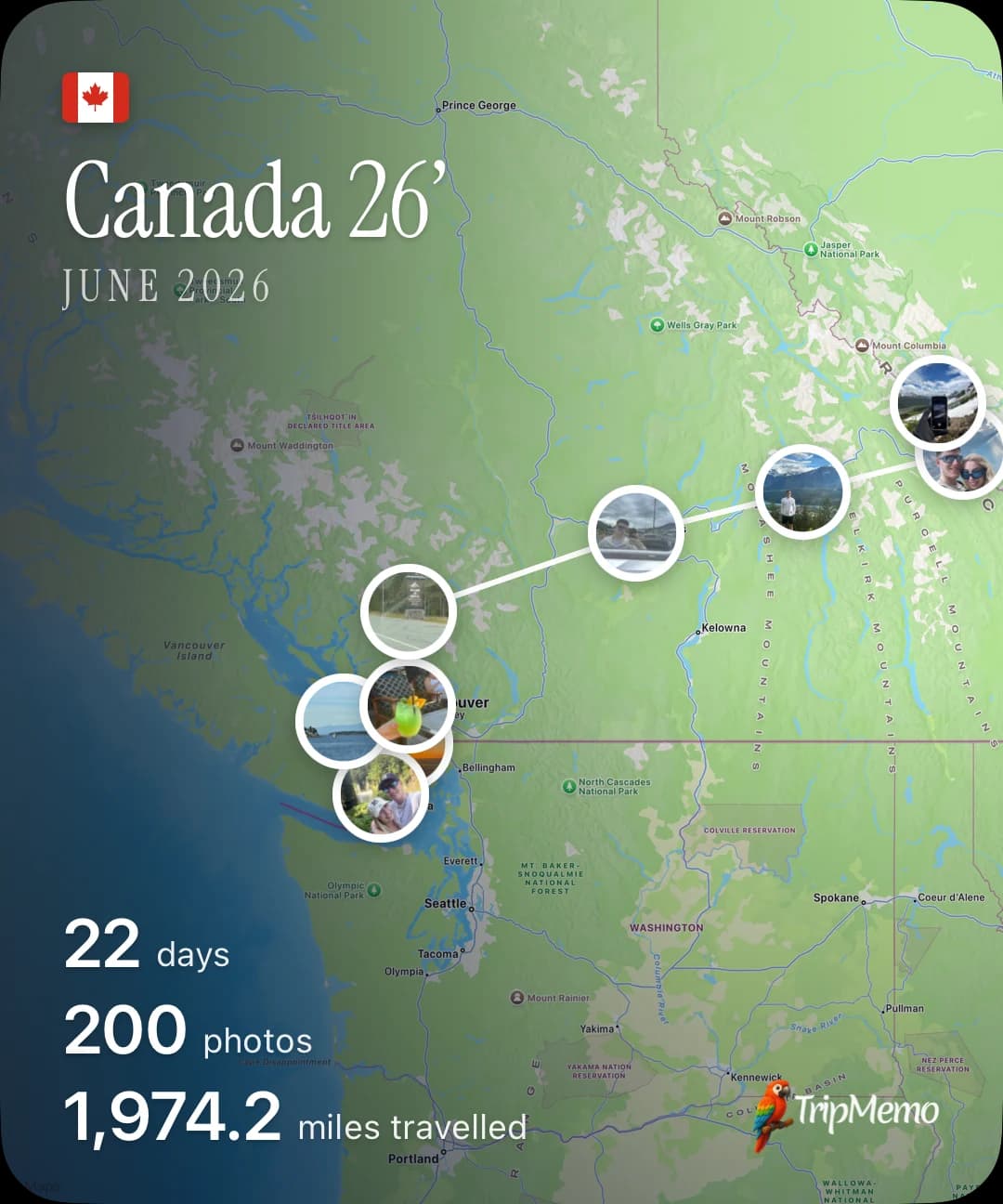
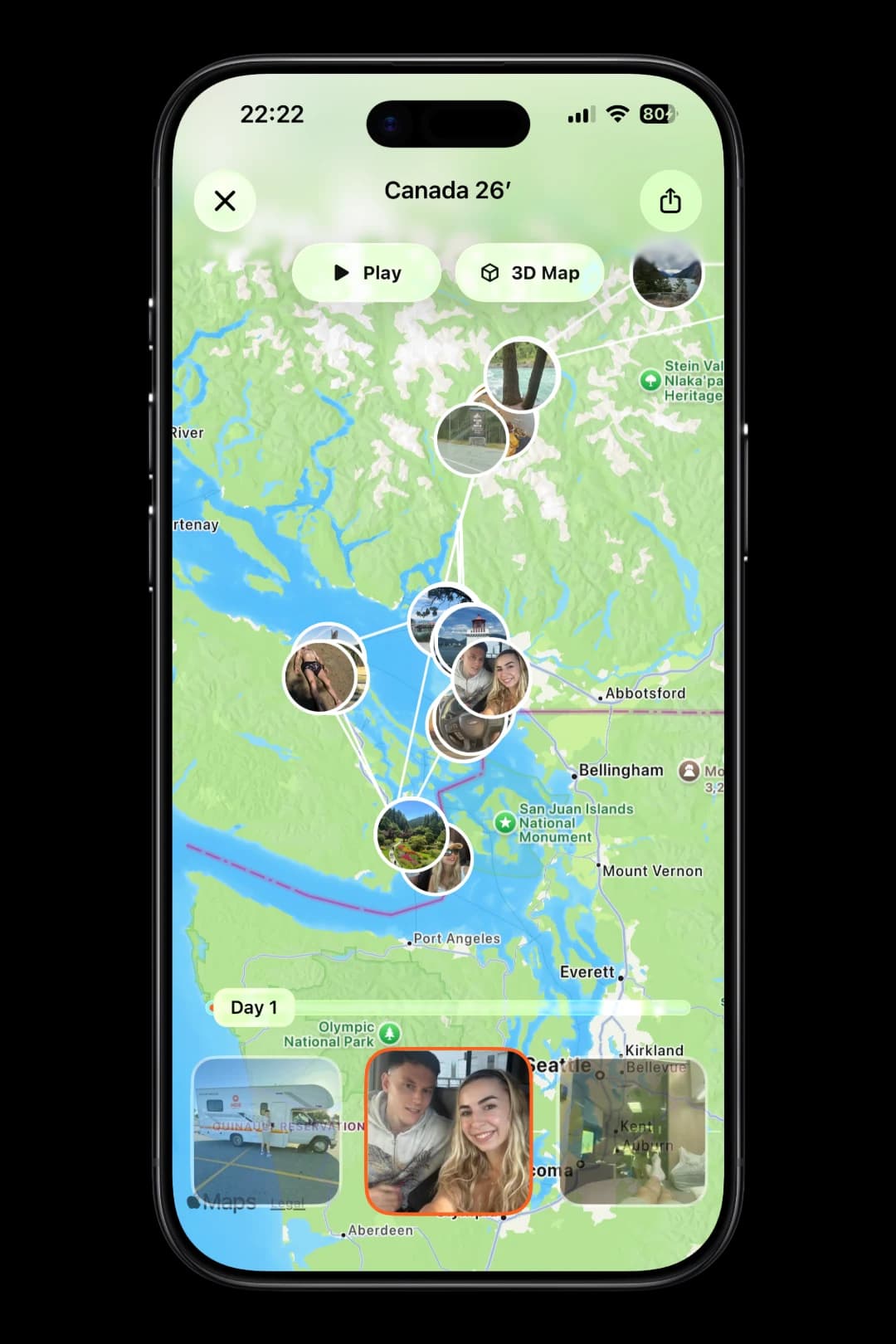
TripMap
Follow every day on one living map. Play the route, explore it in 3D and share the entire trip in one beautiful view.
Transparent methodology
This page compares tools for preserving travel memories. It is not a general comparison of cloud storage providers, self-hosted photo servers or professional photography asset managers.
Reviewed 1 August 2026
Google's current help documentation was checked for backup, search, automatic creations, partner sharing, locations and map behaviour.
We separated photo-library functions from travel-journal functions so that TripMemo is not presented as a complete cloud-backup replacement.
Products were compared across backup, search, trip structure, map context, written context, collaboration and long-term revisit value.
TripMemo publishes this comparison and is one of the products discussed. The page includes reasons to keep Google Photos or use both.
Temporary prices, storage promotions and ratings were excluded from the recommendation logic.
Readers should verify current backup, privacy and sharing settings in the official documentation before relying on any workflow.
Features change. We use official product documentation where possible and avoid using temporary pricing or promotional claims as ranking factors. Check the linked product pages before making a final decision.
TripMemo, App Store listing
Current iPhone features including TripBooks, bulk photo upload, mapped places and collaboration.
Google Photos, official product overview
Current overview of photo backup, search, albums, sharing and access.
Google Photos, back up photos and videos
Backup, cross-device access, search and automatic creations.
Google Photos, partner sharing
Automatic sharing and saving photographs from a partner.
Google Photos, shared albums
Creating and sharing albums with selected people.
Google Photos, locations and map
Photo locations, interactive map and personal Timeline behaviour.
Google Photos, location privacy
How location information can be handled when photographs are shared.
No. Google Photos is designed to back up, search, manage and access a large photo library. TripMemo is designed to turn selected travel photographs, notes and places into structured TripBooks. A strong workflow can use Google Photos or another library for backup and TripMemo for the finished travel story.
Google Photos can group photographs into albums, search by place, display located photographs on a map and create automatic highlights. It becomes more like a travel journal when you deliberately curate albums and add context, but it is still organised primarily as a photo library rather than a day-by-day written trip book.
A travel journal app can add trip boundaries, day-by-day pages, written memories, captions, mapped stops, invited contributors and a deliberate beginning-to-end story. Those elements explain why a photograph mattered, rather than only helping you find the file later.
Yes. Google says photographs with location information can appear in an interactive map, and a personal Timeline can be shown when the required Location History data is available. That map remains part of the wider photo library rather than a dedicated collaborative TripBook.
Google Photos supports partner sharing and shared albums. These are useful for collecting photographs. TripMemo serves a different purpose: invited travellers can place their selected photographs and notes into one day-by-day TripBook that represents the shared trip.
Keep a complete, backed-up library first. Then work trip by trip: remove obvious duplicates, identify the photographs that carry the story, preserve dates and location metadata, and add the missing context in a curated album or travel journal. Do not make a travel journal your only backup copy.
Yes. TripMemo lets you select photographs from a completed journey and bulk upload them into a TripBook. Their dates help organise the trip into chronological pages, after which you can add captions, notes and places.
Related TripMemo Guide
Learn how to turn selected travel photos into a story.
Read guideUse a practical framework for comparing journal features.
Read guideSee how selected photographs become pages, captions and a coherent trip story.
Read guideBuild a record designed for revisiting a journey rather than storing files.
Read guideUnderstand how GPS and EXIF data connect photographs to the places they were taken.
Read guideA practical system for sorting a large camera roll before journaling.
Read guideEditorial disclosure
TripMemo publishes this comparison and is included as one of the products discussed. Google Photos backup, location, sharing and storage behaviour depends on account settings, device permissions and current product rules. Keep an independent backup and check the linked Google support pages before changing your photo workflow.
Turn travel photos into books you'll actually look back on.
.webp&w=64&q=75)

.webp&w=96&q=75)



%20copy%202.webp&w=384&q=75)
%20copy%203.webp&w=384&q=75)
