




TripMemo Product Team
Product & releases
9 min read•Published
Summary
Choose TripMemo for trip countdowns, daily local words, travel stats and photo memories; Flighty for flights; TripIt for upcoming itinerary items; Countdown by Find Appiness for event timers; and Apple Weather for destination forecasts. Start with the information you check most, then change your Home Screen as the trip moves from anticipation to travel days to memories.
The best travel widgets for iPhone depend on what you want to see when you pick up your phone. Choose TripMemo for countdowns, local words, travel stats and photo memories; Flighty for flights; TripIt for your next itinerary item; Countdown by Find Appiness for event timers; and Apple Weather for the forecast where you are going.
A departure date deserves a different place on your screen from a gate change. So does the photo that makes you want to book another trip. This guide compares five apps by those jobs, then shows how to build a useful travel Home Screen without filling every square with information.
For the product gallery, see TripMemo's travel widgets for iPhone.
We make TripMemo. This is an editorial comparison based on our product and official app documentation checked on 11 September 2026, not a hands-on test of every app. We selected apps with documented widgets and distinct travel uses. Availability can depend on the app version, device and plan.
Best travel widget apps at a glance
| App | Best fit | What to check before choosing |
|---|---|---|
| TripMemo | Your next trip and the memories around it | Its widgets covered here are for the iPhone Home Screen |
| Flighty | Flight tracking | Widgets and Live Activities serve different screen locations |
| TripIt | The next item in an itinerary | Some flight details require TripIt Pro; not every plan type appears |
| Countdown by Find Appiness | A holiday timer alongside other events | Its website lists widgets as Premium features |
| Apple Weather | Forecasts for your destination | Set the widget to the destination you actually want to see |
1. TripMemo: for countdowns, travel memories and world progress
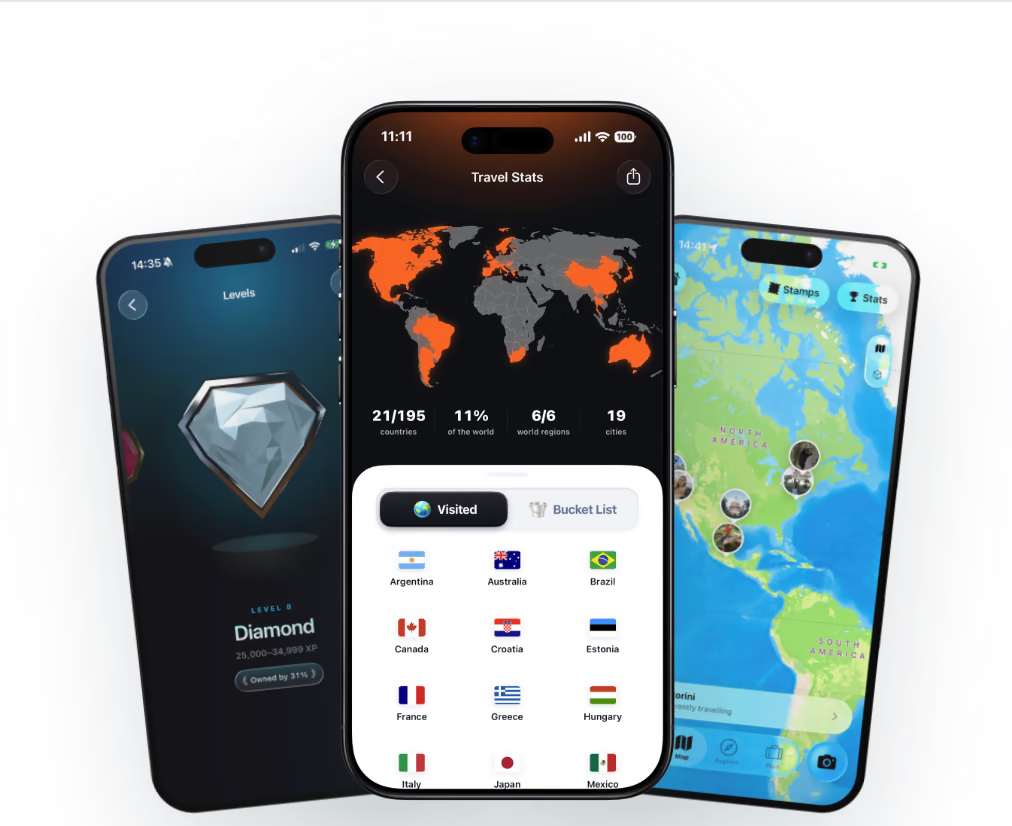
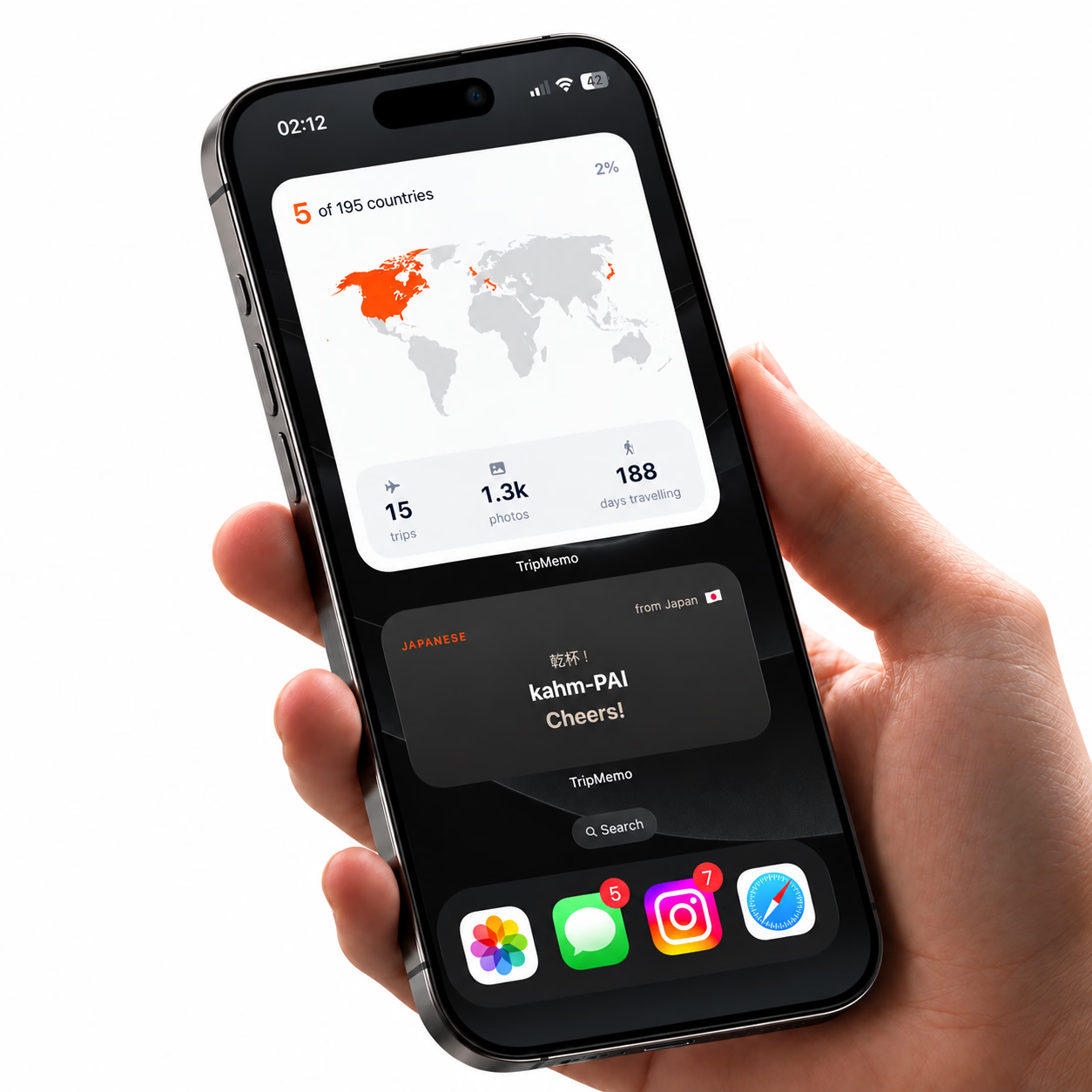
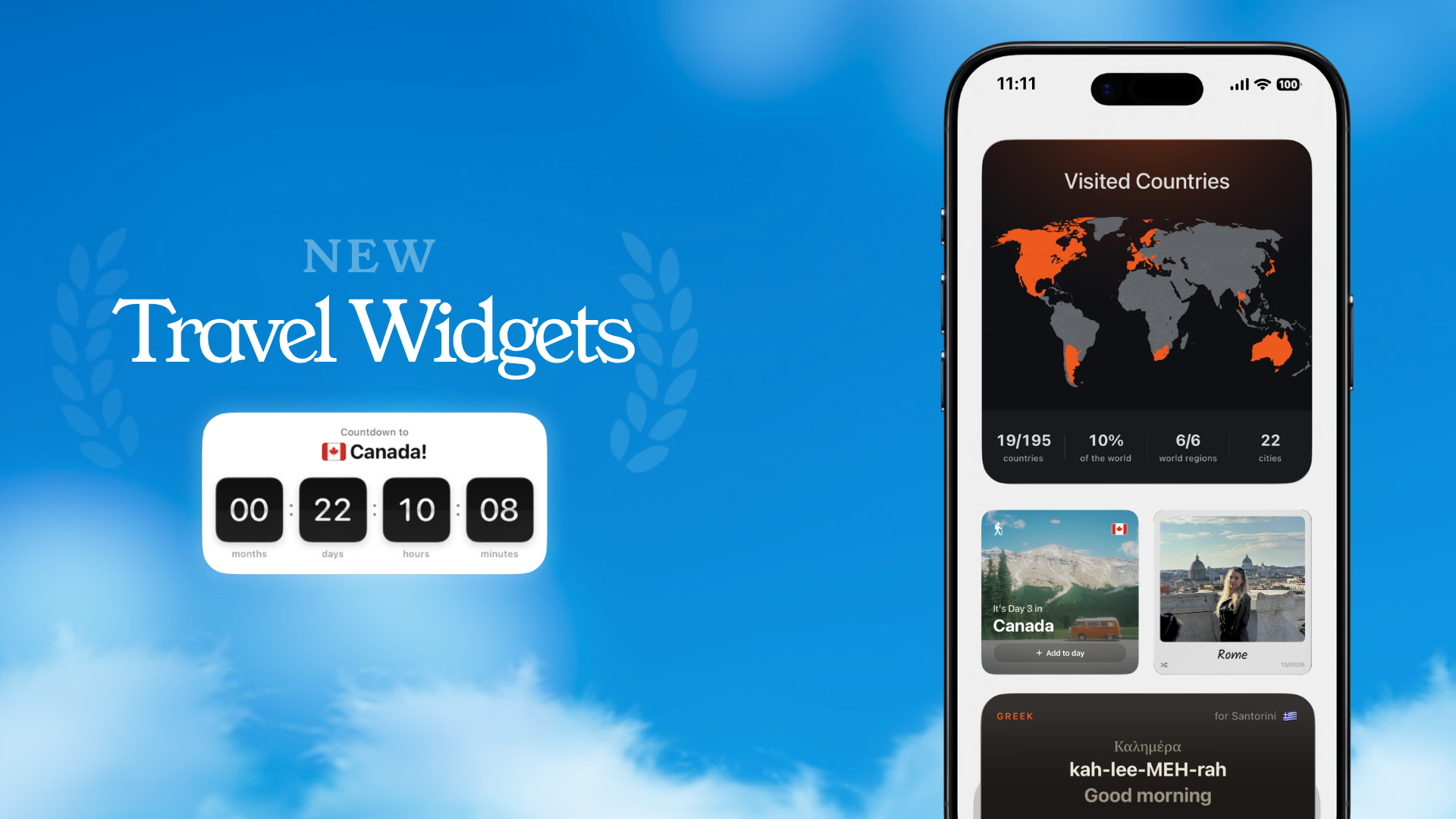
TripMemo makes sense when you want your Home Screen to feel connected to your travels even when you are between trips. Its widgets cover five different moments:
- Trip countdown: see how long remains until your next departure.
- Daily local word: see a translation and how to pronounce it for the country you are visiting.
- World progress: glance at the countries you have visited.
- Current TripBook: open your trip to add a photo to the right day.
- Past trip photos: bring a favourite travel memory back onto your screen.
The useful combination is anticipation before a trip, a quick way back into your travel book while away, and something worth remembering afterwards. You can keep one widget or change the selection as your plans change.
Choose it if: you want countdowns and memories alongside a record of where you have been. A travel stats widget gives that record a home outside the app; a TripBook shortcut makes adding the day's photo easier to remember.
Know the limits: the TripBook widget opens the app, where you add your photo. The daily word is a small language prompt, not a live conversation translator. This guide covers TripMemo's documented Home Screen widgets and makes no claim about Lock Screen or Live Activity support.
See TripMemo's countdown, translation and photo widgets.
2. Flighty: for keeping a flight in view
If your main question is about the flight you are taking today, start with Flighty. Its official widget and Live Activity guide describes flight tracking widgets and separate Live Activities with departure countdowns, gate changes and arrival progress.
Choose it if: flight information is the thing you repeatedly open your phone to check. That is a different job from counting the days until a holiday or bringing back last year's photos.
Know the limits: a Home Screen widget and a Live Activity are different features. Check the available options and current plan requirements in Flighty. Keep the airline's boarding instructions available too.
3. TripIt: for the next step in your itinerary
TripIt's widgets suit a trip with several bookings. Its iPhone widget documentation describes upcoming plans, navigation between plan items and a shortcut into the trip timeline. After a flight, the next item can be a car reservation or hotel check-in.
Choose it if: you want to answer “what is next?” without searching through confirmation emails.
Know the limits: TripIt says flight status, departure terminal and gate details in the widget require Pro. It also lists unsupported items, including notes and cruises. Keep the full itinerary accessible rather than expecting a widget to contain every detail.

Join the TripMemo
Newsletter
Unsubscribe anytime. Read our privacy policy.
4. Countdown: for a holiday countdown alongside other dates
If you want a timer for a holiday, a birthday and a concert in the same place, consider Countdown by Find Appiness. Its official feature page describes Home Screen, Lock Screen and StandBy countdowns, with widgets listed under Premium.
Choose it if: your main goal is to keep dates visible across travel and everyday life. A dedicated event timer can be a good fit when you do not need a travel journal.
Know the limits: check the widget entitlement before installing specifically for a holiday countdown. The event timer itself does not replace a flight tracker or a record of your trip.
5. Apple Weather: for your destination's forecast
Sometimes the most useful travel widget answers a very ordinary question: do you need another layer?
Apple's Weather widget guide explains how to select a city and add multiple widgets for different locations.
Choose it if: you want the destination forecast in view while packing or deciding how to spend the day.
Know the limits: make sure you are looking at the destination, not your current location. A familiar city name above the forecast is easy to miss when you are concentrating on the temperature.
How to add a travel countdown widget to your iPhone
Start by setting up the trip or event inside your chosen app. Then follow Apple's Home Screen widget instructions:
- Hold an empty area of the Home Screen until the icons move.
- Tap Edit, then Add Widget.
- Search for the app and browse its available widget styles.
- Choose a size, tap Add Widget, position it and tap Done.
- If the app provides an Edit Widget option, use it to select the intended trip or event.
Before you finish, check the destination and date. A beautifully arranged holiday countdown is not much help if it is pointing at the wrong trip.
For TripMemo examples, open the trip countdown widget section. The app's available choices determine what you can add; the iPhone widget gallery does not give every app every type of widget.
Home Screen widgets, Lock Screen widgets and Live Activities
These names describe different things. A Home Screen widget sits among your app icons. A Lock Screen widget occupies a widget position on the locked screen. A Live Activity follows an ongoing event, such as a flight, with changing status information.
Support for one does not establish support for the others. Flighty documents Live Activities separately from widgets, while TripMemo's feature page describes its Home Screen options. Choose the screen you want to use, then check that the specific app supports it.

%20copy%202.avif&w=384&q=75&dpl=dpl_8rfq4W9dyXsDTL7JRYsC2GrNn4WF)
%20copy%203.avif&w=384&q=75&dpl=dpl_8rfq4W9dyXsDTL7JRYsC2GrNn4WF)

Your trips deservemore than a camera roll
.avif&w=96&q=75&dpl=dpl_8rfq4W9dyXsDTL7JRYsC2GrNn4WF)
A travel Home Screen for before, during and after the trip
Here is an example for a week in Greece. It is a suggested layout, not a requirement to install all five apps.
| Stage | Keep visible | Why it earns the space |
|---|---|---|
| Two weeks before departure | Trip countdown and destination weather | Enjoy the anticipation and make a more useful packing list |
| Flight day | Flight information or the next itinerary item | Put the information you need repeatedly within reach |
| While exploring | Daily local word and current TripBook shortcut | Try a greeting, then save a photo and a few words about the day |
| Back home | Past trip photo and world progress | Give the journey somewhere to return to after the suitcase is unpacked |
Start with two widgets. After a day, notice which one you actually use. Give that one the easier position and remove anything you keep ignoring.
The TripBook shortcut is particularly useful as a small evening habit: open the day, add a favourite photo, and write the detail the picture cannot explain. Our guide to organising travel photos covers the bigger decision about where those memories should live.
Which travel widget should you choose?
Choose the widget for the question you ask most often. If it is about your flight, begin with Flighty. If it is about the next booking, look at TripIt. If it is simply the time until an event, compare Countdown. For destination conditions, start with Weather.
For the thread that runs through the whole trip, from looking forward to it to remembering it, we would choose TripMemo. Its countdown, daily word, TripBook shortcut and photo memories give you reasons to keep a little of your travel life on the Home Screen after you get home.
Get TripMemo for iPhoneFrequently asked questions
What are the best travel widgets for iPhone?
Choose by purpose: TripMemo for countdowns, daily local words, travel stats and photo memories; Flighty for flights; TripIt for itinerary items; Countdown by Find Appiness for event timers; and Apple Weather for destination forecasts.
How do I add a travel countdown widget to my iPhone?
Set up the trip or event in an app that offers a countdown widget. Hold an empty area of the Home Screen, tap Edit, then Add Widget. Find the app, choose a widget size and add it. Use Edit Widget if the app offers a trip or event selector.
Does TripMemo have Lock Screen widgets?
This guide covers TripMemo's documented Home Screen widgets. It does not claim TripMemo support for Lock Screen widgets, Live Activities or StandBy. Check the current feature page and the widget options on your iPhone.
Can I add a photo to a TripBook directly inside the widget?
The TripMemo widget opens your current TripBook in the app. You add the photo there, rather than uploading it inside the Home Screen widget.
Which travel widgets work on Android?
TripIt documents an Android widget as well as its iPhone widgets. TripMemo is for iPhone. This comparison covers iPhone behaviour, so check the Android version of an app separately before choosing it.
Related reading: TripMemo travel widgets, best travel stats apps, and turning saved travel videos into an itinerary.